
Traverse Administrator Guide
Install License Server
In order to run Traverse, the Traverse License Server must be running as a service on your server. Traverse Workstation installations can be networked to reference the server's instance of Traverse License Server.
The Traverse License Server keeps track of registration and application information.
Tips:
- Traverse v11 Server Manager, License Manager, and Client installations are distributed in an ISO file. Before you start the installation, you must either burn the ISO file to a CD or DVD or mount the ISO as a virtual drive on the server.
- When available during the installation process, you can click Cancel to exit the procedure or Back to return to the previous window.
To install the Traverse License Server, follow these steps:
-
To start the installation process, go to the LicenseServer directory in the ISO file and run the TraverseLicenseServer.exe file.
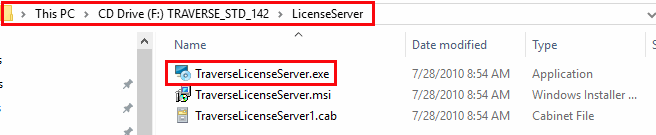
- Choose Install License Server from the menu.
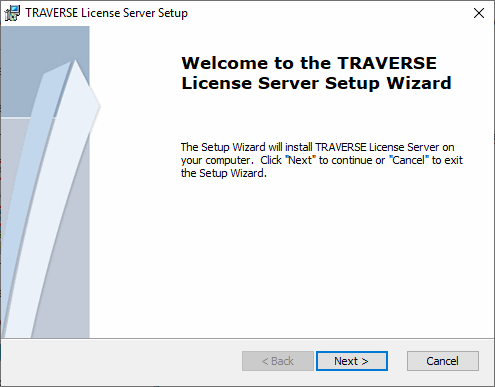
- The License Server wizard appears. Click Next to proceed with installation.
- The End User License Agreement appears. Review the license agreement and choose I accept the terms in the License Agreement to proceed with the installation, or Cancel to stop the installation.
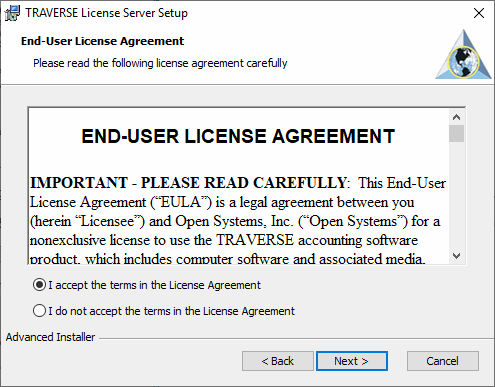
- Click Next to proceed.
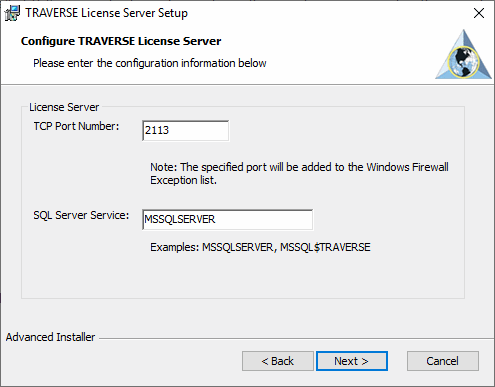
- The screen for configuring the default TCP Port Number appears. Accept the default TCP Port Number, or enter a different port number.
- Click Next to proceed.
- The Select Installation Folder screen appears. Accept the default installation path, or enter an alternate path.
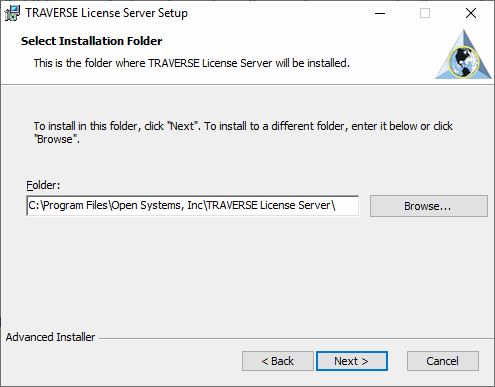
- Click Next to proceed.
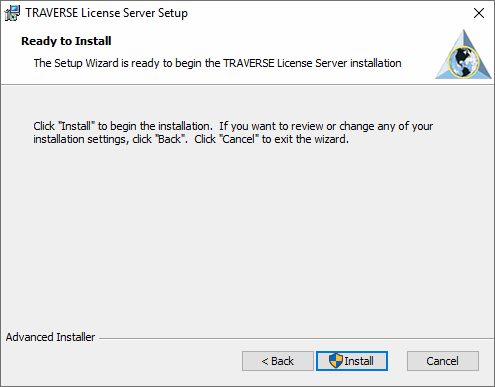
- Click Install in the Ready to Install screen to begin the Traverse License Server installation, or Cancel to halt the installation.
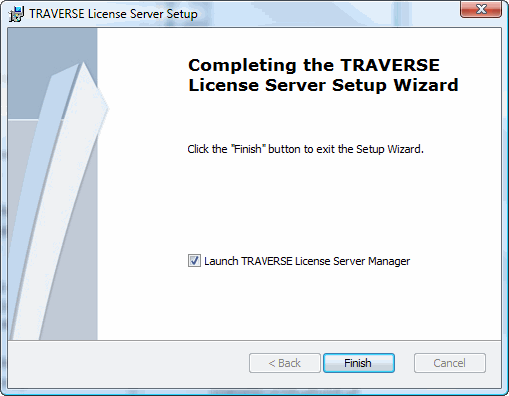
- Check the Launch Traverse License Server box, and click Finish to continue to the Traverse License Server setup.
- If you have previously saved the License Server configuration, use the Load Config File button to fill in the fields. Review all information before starting the service.
- Select a profile ID in the Profile ID field or add a new profile by clicking on the New button. A single product ID can be assigned to each profile. By creating a profile for each product ID, you may attach multiple profiles to a single instance of SQL Server. This is useful if you have one SQL Server, but multiple profiles/product IDs. However, you cannot assign a profile to more than one instance of SQL Server.
- In the TRAVERSE Database section, enter the name of the SQL server in the Sql Server field. Enter the Traverse master login and password in the Login and Password fields.
- In the Membership Database section, complete the Sql Server, Login, and Password fields if your system uses a different server for the membership database. Otherwise, check the Use TRAVERSE Credentials check box.
- In the Others section, enter the default company database name in the Default DB field.
- The TCP port configured earlier in the installation will appear in the Tcp Port field. Change it if necessary.
- Enter the Traverse product ID in the Product ID field. Click Activate Product to validate your Traverse installation. A Site ID dialog box will appear. Enter your Traverse Site ID in the box, and click OK.
- When you have finished configuring the Traverse License Server, click Update Configuration. Click the Save Config File button if you would like to save the settings to configure a new License Server. Click Start Service, and then Close to activate the Traverse License Server.
Enter the SQL Server Service name where Traverse 11 is installed. If it’s a named instance, be sure to use the correct naming convention (for example, MSSQL$TRAVERSE).
When the installation is complete, the following window appears:
The License Server Configuration window appears.
