Traverse Standard v11.0
Inventory Catalog
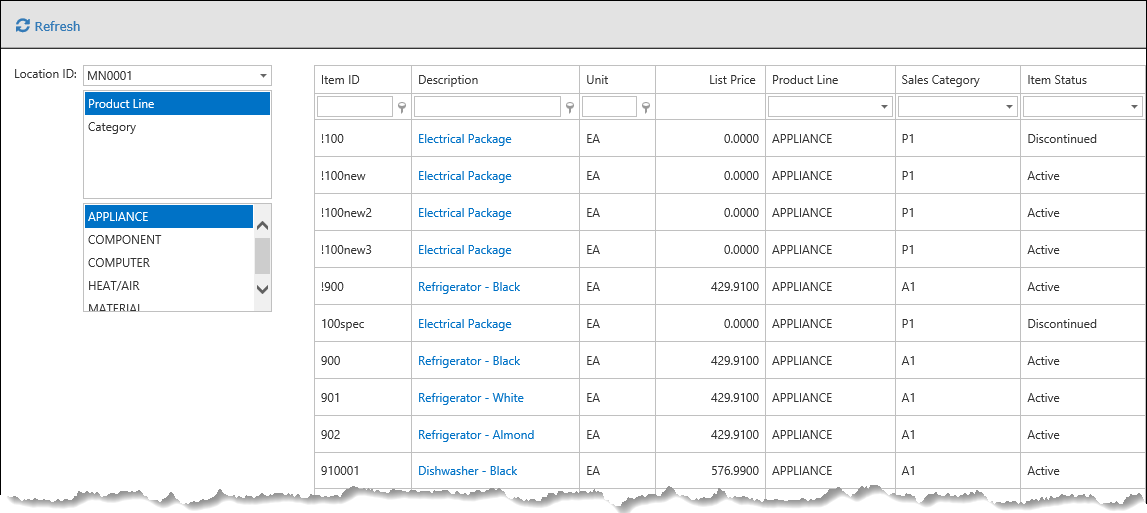
Use the Inventory Catalog to search for and view the details of Inventory Items, filtering by Location ID, Product Line, and Sales Category.
The Inventory Catalog will allow you to easily see groups of items and view the details of the items including pictures.
- Select the Location ID for which you wish to see the items.
- Select to filter by Product Line or Sales Category. Select the Product Line or Category for which you wish to view the items. The screen will automatically populate with the filtered selections.
- You may further filter the inventory catalog by using the column filters.
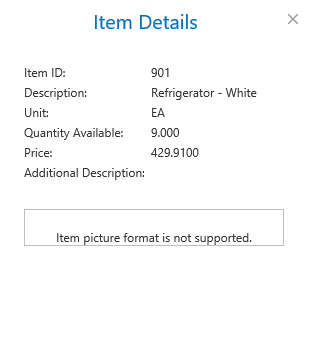
- To see details of an item, click on the blue Description link. This will open an Item Details screen.
NOTE: If the image is a PDF file, it is visible only when the item picture type in the inventory Pictures function is set to 'Linked'.
- Use the Refresh icon to refresh the view of the Inventory Catalog.