Traverse Standard v11.0
Site Equipment
Use the Site Equipment function to set up equipment owned by you or one of your customers that you service or repair. Site equipment does not have to exist in inventory, and the site ID allows you to easily move equipment from one location of usage to another.
To avoid double entry with your general equipment, set up the general equipment you own, and use that equipment ID to copy from when setting up new site equipment. This will bring the information from the general equipment setup into the site equipment setup.
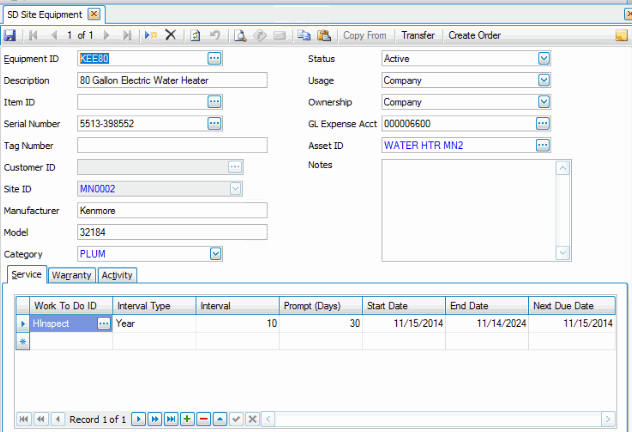
Select Site Equipment from the Setup and Maintenance menu, then use the fields at the top of the screen to enter or edit basic information. Use the Service, Warranty, and Activity tabs to record service history, warranty information, and other historical activity for the equipment.
- Use the Transfer button on the toolbar to open the Transfer window to transfer a piece of equipment to another site or customer. You cannot transfer the equipment to the current site or customer.
- Use the Create Order button to open the Work Order Entry or Service Order Entry screen to create a work order or service order for the selected equipment. See the Auto-Create Service Order Overview for more information.
To create a new site equipment record:
- Click the New button on the toolbar to open an empty record.
- Enter an Equipment ID. To copy item information from a similar record for a new item, click the Copy From button on the toolbar then select an existing item record with the browse button from the Equipment window that opens. Check the additional information you want to copy to the new equipment entry, then click the OK button.
- Enter a Description for the equipment.
- If applicable, select an Item ID from Inventory if Service Director is interfaced with your Traverse Inventory application.
- Enter or select a Serial Number for this equipment ID. The maximum number of characters for this field is 35. If you select an item ID, and the item is a serialized item in Inventory, you will be able to choose from a list of available serial numbers.
- Enter a Tag Number for this equipment ID, if applicable. This field is for information only, and can be used for sorting and filtering.
- Select a Customer ID for equipment owned by a customer from the list of customers in Accounts Receivable, if applicable. This may be used to enter a service order for equipment when a customer ID is selected for the service order. The equipment owned by the customer will be available in your list.
- Select a Site ID for this equipment from the drop-down list. By selecting a site ID, you are indicating this equipment belongs to your company and not to a customer.
- Enter the Manufacturer and the Model for the equipment. These fields are for information only and are not tied to any other field. They can be used to filter reports and interactive views.
- Select an Equipment Category for this equipment. Note: If the category you want to use is not in the category drop-down list, double-click on the Category field to open the SD Equipment Category function. Add your new category and save your changes. When you return to the SD Site Equipment function, your new category will now appear in the category drop-down list.
- Select an 'Active' Status if the equipment is in service, or 'Inactive' if the equipment is not in service.
- The Usage field indicates how the equipment is being used. Select 'Customer' if the equipment is used primarily by your customer. Select 'Company' if the equipment is primarily utilized by your company. Select 'All' if the equipment is used by both you and your customer.
- Use the Ownership field to select the equipment owner. If you have selected a customer ID, then select 'Customer' in this field. This indicates the equipment will be included on Site Equipment reports. If the Site ID field is populated, select 'Company' in this field. This indicates you own the equipment and it will appear in General Equipment reports.
- Select the GL Expense Account to post to from the drop-down list.
- If Service Director is interfaced with your Traverse Fixed Asset application, select an Asset ID. When work orders and service orders are posted for maintenance recorded, the asset ID in Fixed Assets will have the Service tab updated with the maintenance or service done on that piece of equipment.
- Enter any Notes about the equipment.
 On the Service tab
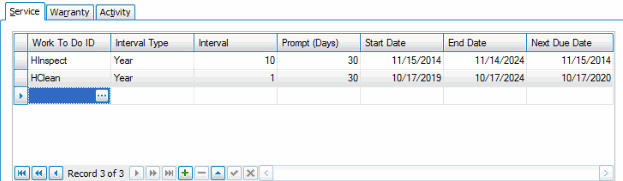
Use the Service tab to enter work that needs to be done on this equipment ID. You will also be able to enter an interval type used and how often this work needs to be done. You can also enter how many days prior to the service being due you want to be prompted that the service is due. You can use this tab to view what the start date, end date, and next service due date are for this equipment.
- To add a new Service record, use the Append button (
 ).
). - Select a Work To Do ID for this equipment. Note: If the Work To Do ID you want to use is not in the work to do drop-down list, double-click on the Work To Do ID field to open the SD Work To Do Descriptions function. Add your new work to do description with associated details and save your changes. When you return to the Service tab, your new work to do ID will now appear in the drop-down list.
- Select the Interval Type for the associated work to do ID for this equipment. The interval type is the unit Traverse uses when calculating when service is due.
- Set the number of Intervals between scheduled service for the associated work to do ID for this equipment. The interval is used to determine how many occurrences of the selected interval type (years, months, or days) there are between service due dates. For example, if the interval type is month, and the interval is 3, the service will be due every 3 months.
- In the Prompt (Days) field, set the number of days before a service due date that Traverse will prompt you that service is due.
- Set the Start Date, which is the date Traverse will use to start calculating the next service due date before any service has been conducted. Once service has been performed on the equipment, Traverse will use the last service date to calculate the next service due date.
- Set the End Date, if applicable. This is the date Traverse will stop calculating the next service due date.
- The Next Due Date field shows the next date the associated work to do service is scheduled to be accomplished on the equipment. When you post orders, Traverse will calculate the next service due date based on the most recent service date. If no service activity has been recorded for the associated work to do, Traverse will calculate the next service due date based on the service Start Date field value.
- Save your changes.
On the Warranty tab
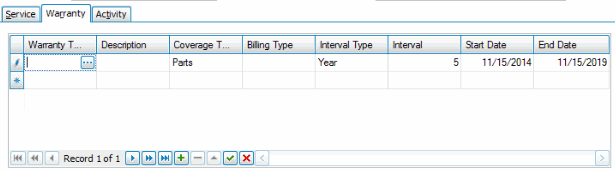
Use the Warranty tab to enter information about the warranty for this equipment ID. This will help you determine if repairs are covered by the warranty of the equipment, or if the repairs are a billable engagement. This tab will also let you know when the start date and end date of the warranty are.
- To add a new Warranty record, use the Append button ().
- Select a Warranty Type from the drop-down list. If you cannot find the warranty type you are looking for, you can double-click on the Warranty Type field to open the Warranty Type form to add a new warranty type.
- Accept or edit the Description of the warranty, as necessary.
- Select the Coverage Type for the associated warranty for this equipment:
- None - There is no warranty for this equipment.
- Parts/Labor - There is a warranty on both parts and labor for the specified interval type and interval.
- Labor - There is a warranty on labor only for the specified interval type and interval.
- Parts - There is a warranty on parts only for the specified interval type and interval.
The coverage type will default from the warranty type selected. Edit the coverage type as needed.
- Accept or select a Billing Type from the drop-down list. The billing type defaults from the warranty type selected. If you cannot find the billing type you are looking for, you can double-click on the Billing Type field to open the Billing Type form to add a new billing type.
- Select the Interval Type for the associated warranty for this equipment. The interval type is the unit Traverse uses when calculating when a warranty is due to expire.
- Set the number of Intervals covered by the warranty on the equipment. The interval is used to determine when the warranty will expire. For example, if the interval type is year, and the interval is 3, the warranty will expire 3 years after the start date.
- Set the date Traverse will use to start calculating the expiration date for the warranty in the Start Date.
- The End Date field shows the date the associated warranty will expire. Traverse will calculate the end date based on the Interval, Interval Type, and Start Date field values.
- Save your changes.
On the Activity tab
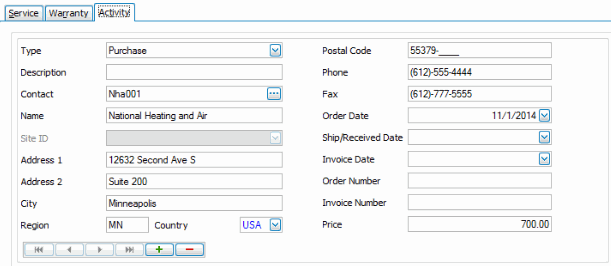
Use the Activity tab to record purchase, sale, and transfer information that has happened with this piece of equipment.
- To add a new Activity record, use the Append button ().
- Select a Type of activity to record for this equipment. Select 'Purchase' if the activity is related to the purchase of the equipment. Select 'Sale' if the activity is a sale of the equipment, or select 'Transfer' if the equipment is transferred to another site or customer.
- Enter a Description of the activity.
- The Contact field links to your vendors if Service Director interfaces with Accounts Payable, and to your customers if Service Director interfaces with Accounts Receivable. The selection you made in the type field will determine the values from which you can select. If you chose 'Purchase', you can select from vendors. If you chose 'Sale' or 'Transfer', you can select a customer ID.
You can leave this field blank in the case of a transfer of the equipment ID between your company sites.
- If you chose 'Transfer' in the Type field, and you left the Contact field blank, as in the case of a transfer of the equipment between your company sites, you will be able to choose one of your company site IDs for the Site ID field.
- The Name, Address 1/2, City, Region, Country, Postal Code, Phone, and Fax fields display the information associated with the contact selected in the Contact field.
- In the Order Date field, set the date the purchase, sale, or transfer of the equipment took place.
- In the Ship/Received Date field, set the date you shipped the equipment to a customer or site or the date you or one of your sites received the equipment.
- Enter the Invoice Date, as applicable.
- Enter the Order Number for the activity, as applicable.
- Enter the Invoice Number for the activity, as applicable.
- Enter the Price paid or received for the equipment.
- Save your changes.