Traverse Global v11.2 - Service Repair
Material Charges
Use the Material Charges function as you would the Traverse SR Material Charges screen: to add items, and thus material charges, to a job.
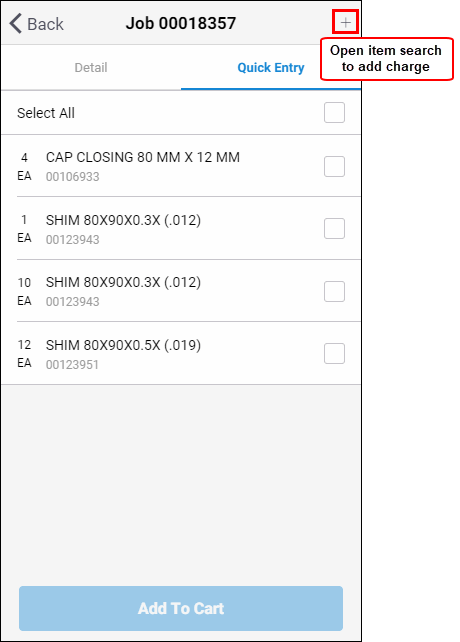
To add new charges:
- Select a job to which you want to add charges.
- Click the plus sign in the upper right corner of the screen to open the item search.
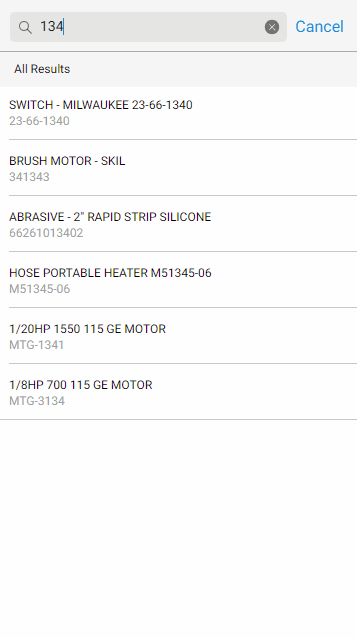
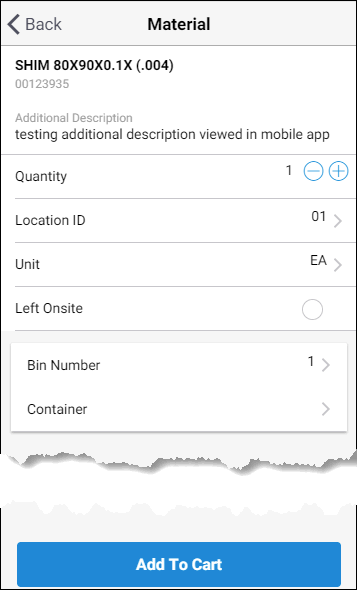
- Select an item to add to the job. A Material Detail screen appears. If an additional description exists for the item, it will display below the item number. Enter the Quantity of the item to add to the job, and select an inventory Location and Unit of measure.
If you are leaving the item at the work site, mark the Left Onsite check box. If Service Repair is interfaced with Warehouse Management, you must enter or select a Bin Number. If SR is interfaced with WM and the WM business rule for Containers Required is 'Yes', you must enter or select a Container.
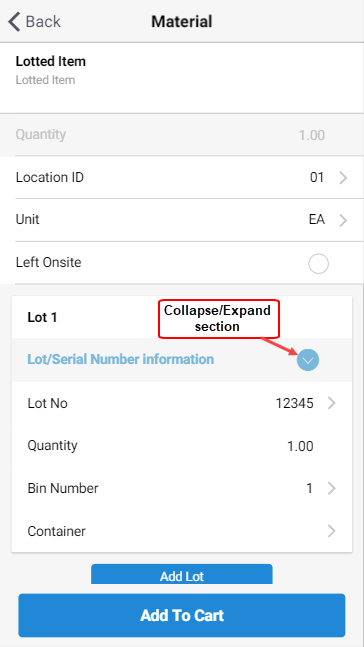
If the item is lotted and/or serialized, the Material Detail screen will require you to enter the lot and/or serial number, as well as allow you to choose a bin and container, as applicable. Tap Add Lot or Add Serial Number as applicable. Another lotted/serialized section will appear. Enter the next lotted and/or serialized item entry section and repeat the process as needed.
Once you are finished, use the X in the upper right corner of the new lot/serial section to close it, then you will be allowed to add the item(s) to the cart.
Click Add To Cart.
- Once you add items to the cart, the items are shown in the cart (NOTE: You may have to tap the Cart button at the bottom of the screen to view the contents of the cart.). If the technician left an item at the work site, mark the Left Onsite check box.
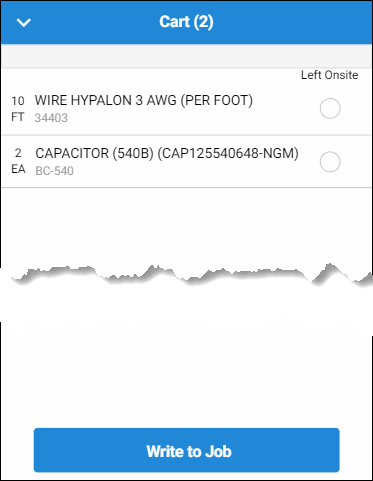
- To add the item to the job, use the Write to Job button at the bottom of the screen. A notification window will display to let you know the materials have been added to the job. Once you add the material to the job, the item will appear in the Material Detail list.
- Use the Back button in the upper left corner of the screen to return to the main menu.