Traverse Global v11.2 - Service Repair
Purchase Order Returns
Use the Purchase Order Returns function to generate a Material Charge Return transaction and a Purchase Order Return transaction for materials charged to a job. Materials charged to a job appear on the Detail tab on the Job Transactions screen.
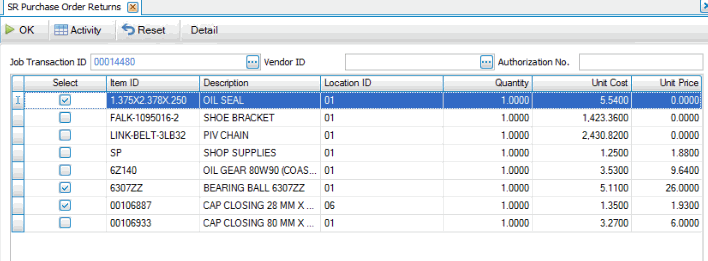
To generate return transactions:
- Select a job in the Job Transaction ID drop-down field. Double-click on the job number to open the Job Transactions screen in read-only mode.
- Select the vendor for the return in the Vendor ID drop-down field. Double-click on the vendor ID number to open the AP Vendors maintenance screen for that vendor.
- Enter the PO return Authorization No..
- The materials charged to the job appear in the detail section of the Purchase Order Returns screen. Select the check box in the Select column of each item you want to return. When you mark a check box, the Extended Qty screen will appear to allow you to specify the bin, quantity, and container as applicable, as well as enter a comment for the item. Click Close to return to the Purchase Order Returns screen.
- If the item is serialized, the Ser No Entry button will appear on the toolbar. Use the button to open the Ser No Entry window, where you can select the serial number of the item you are returning from the drop-down list. Press Close to continue.

- Enter the Quantity of the item you want to return.
- Click a command button to
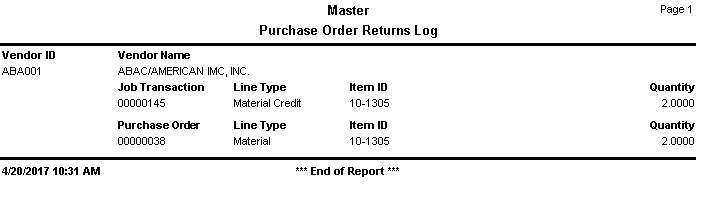
Click To OK Begin processing. Activity View the Activity Log. Reset Set all fields to their default values. Detail - Once the return is processed, you will receive a notification window. A preview of the PO Returns log also appears listing the job transaction and the purchase order affected by the return.
 Sample PO Returns Log