Traverse Standard v11.0
Portal Settings
The Portal Settings function allows you to view and/or update configuration setting applicable to internal web applications. This includes all web applications except the customer web portal.
You can review these settings in the System Manager Portal business rules.
Open the portal settings function by selecting Portal Settings from the Configuration drop-down menu.
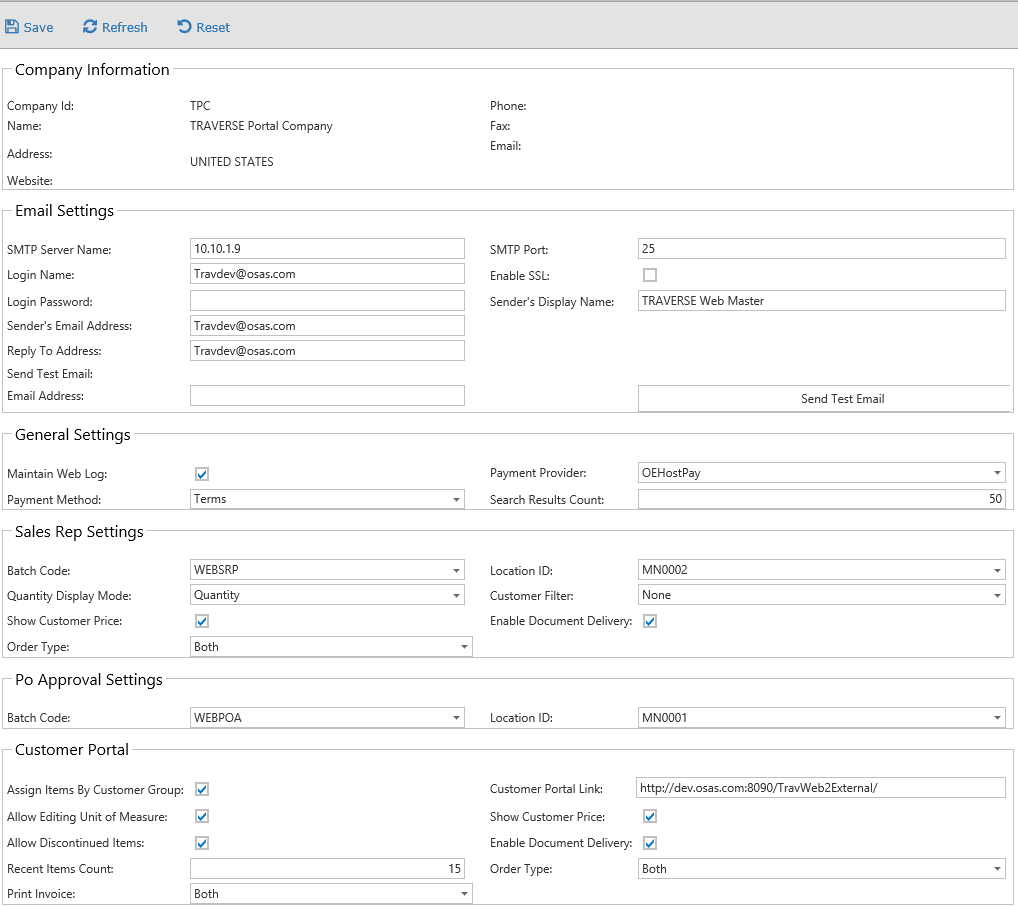
- Company Information, similar to Site Settings in the Customer Portal Manager menu, will display. This information is read-only.
- The values in the Email Settings section default from the System Manager Traverse Portal business rules for the current company. If you change these values, use the Save icon to save your changes. If you want to test the email settings, enter a destination Email Address, then click the Send Test Email button.
- The values in the General Settings section default from the System Manager Traverse Portal business rules for the current company. If you change these values, use the Save icon to save your changes.
- The values in the Sales Rep Settings section default from the System Manager Traverse Portal business rules for the current company. If you change these values, use the Save icon to save your changes.
- The values in the PO Approval Settings section default from the System Manager Traverse Portal business rules for the current company. If you change these values, use the Save icon to save your changes.
- The values in the Customer Portal section default from the System Manager Traverse Portal business rules for the current company. If you change these values, use the Save icon to save your changes.
- Use the command buttons to:
| Click | To |
| Save | Save any changes. |
| Refresh | Reload the web page. |
| Reset | Reset fields to their starting values. |